
A guide for transferring from Health Science First Year (HSFY) to a different degree programme for semester 2.
If you’ve decided HSFY isn’t for you, or perhaps semester 1 didn’t go well, it is easy to move from HSFY to another programme.
Student Development are running Moving from HSFY Webinars throughout June and early July. We recommend you attend one of these webinars if you are considering this and have any questions.
Key information about transferring from HSFY:
- You can only make these changes after semester 1 results have been confirmed.
- You must make these changes in eVision before the last day to add papers for semester 2.
Check enrolment deadlines - After the last day to add papers, this change must be completed manually and requires departmental approvals.
More info below - If you are an international student, you should seek advice from the University’s Student Visa Services team and, where relevant, an International Student Adviser before submitting a programme change. Changes to your programme of study can affect your visa conditions and any sponsorship arrangements.
How to move from HSFY
- Log into eVision and apply for a new programme on the Programmes and Papers page (this is a big yellow button).
Log into eVision - Select the degree you wish to move into, e.g. Bachelor of Science.
- Complete and submit your application.
- You will receive an alert to let you know you have an offer of place to the degree. You must accept this offer to move to the next step.
Return to your ‘Programme and Papers’ page and enter your application for the new degree.
Select the yellow ‘Change’ button. After accepting your new programme, a ‘Change of Course’ task will appear in eVision.
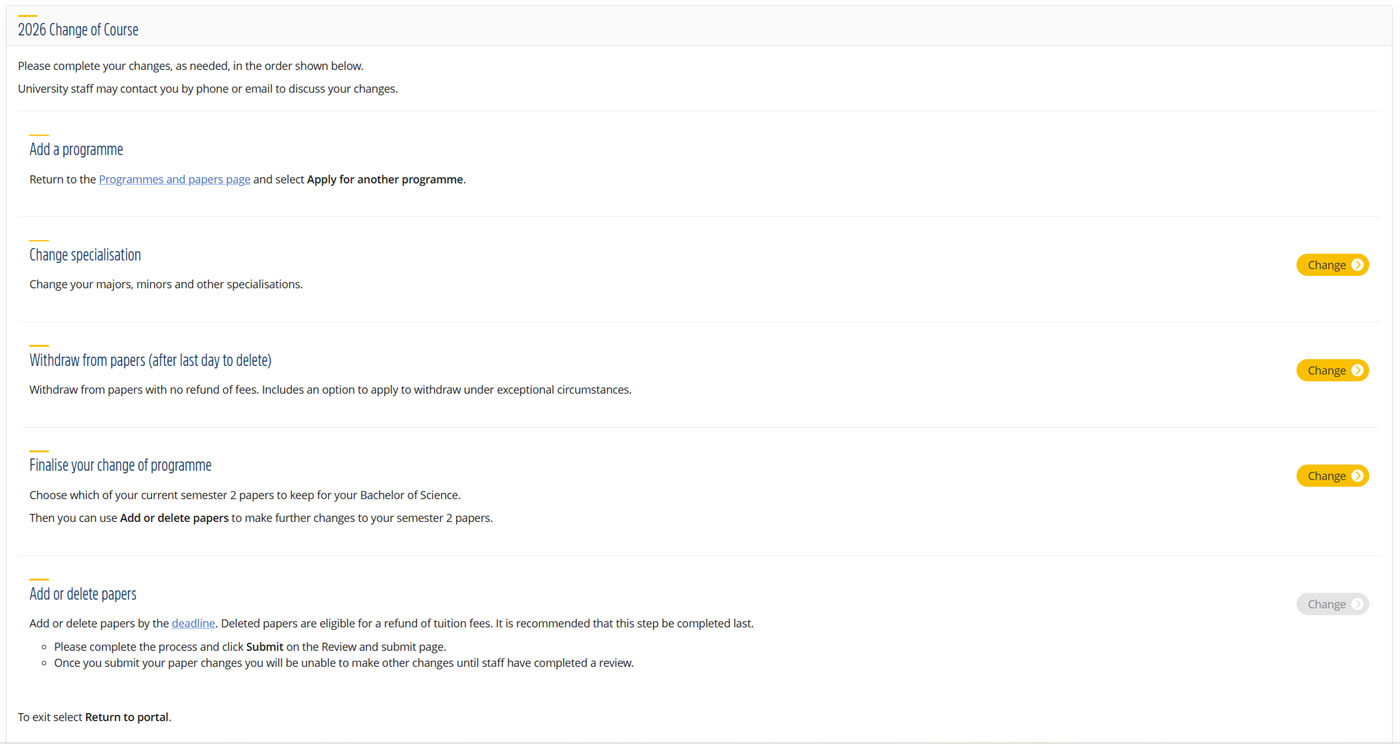 Under ‘Finalise your change of programme’, select the yellow ‘Change‘ button.
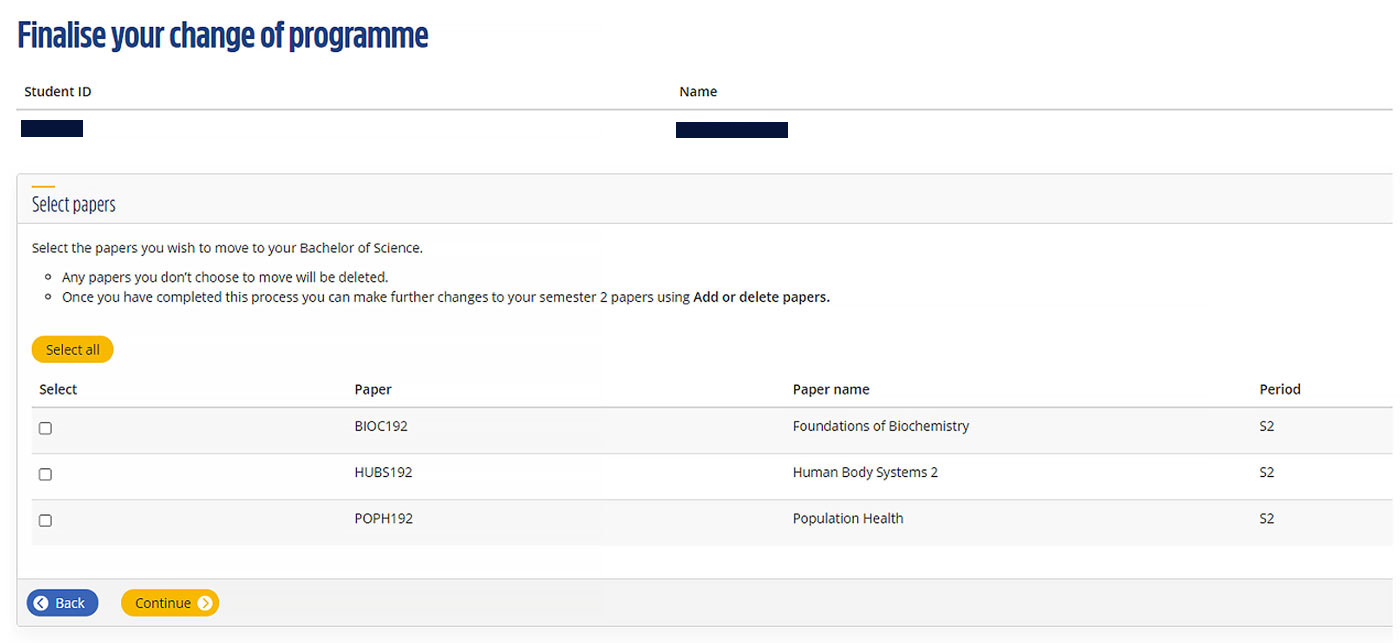
If you wish to keep any of your semester 2 HSFY papers, you can select these now. Those not selected will automatically be deleted.
Select the papers to be moved.
Confirm your selection.
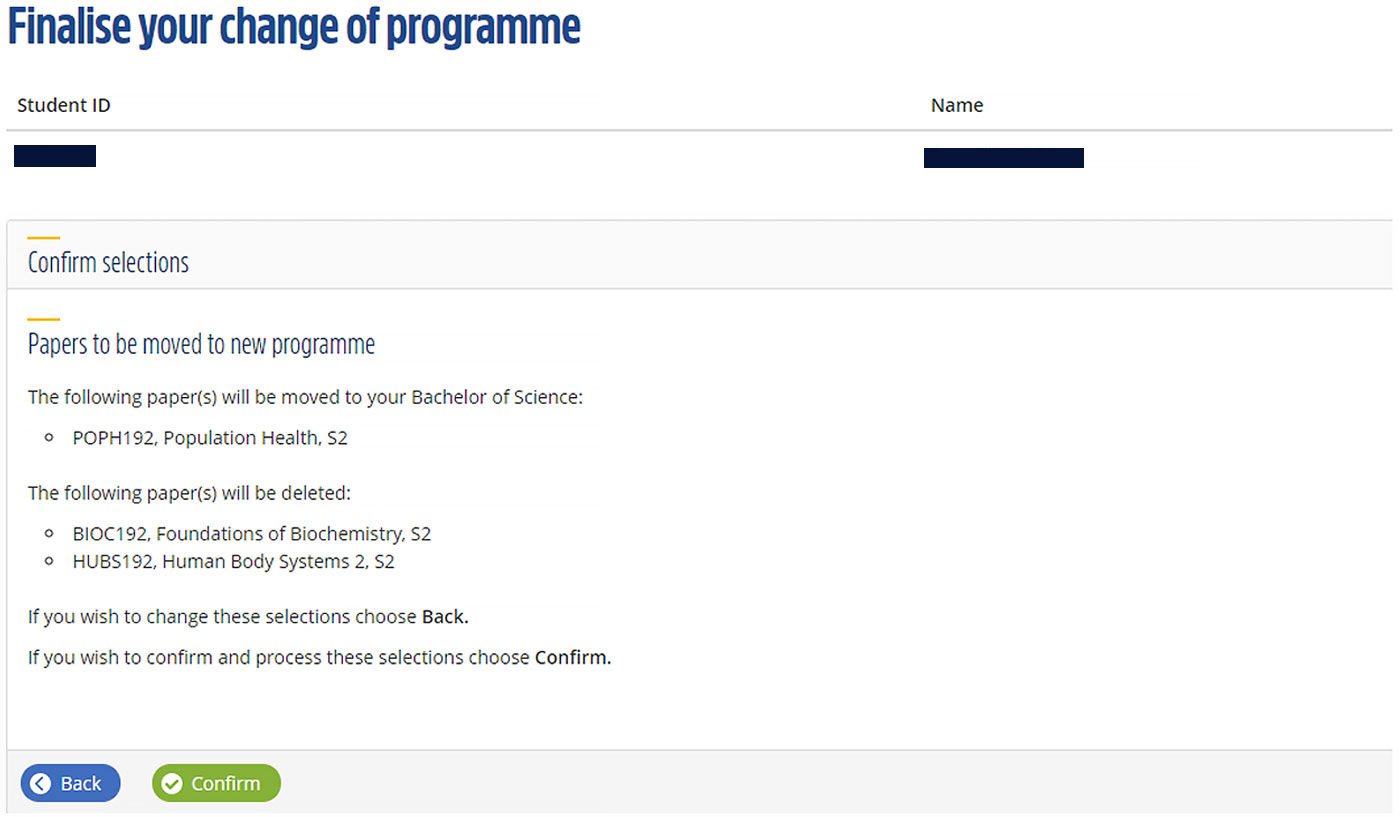
You can only move papers to one degree at this stage. If you have applied for more than one degree you can make further changes when you enter ‘Add/Delete papers‘.
Make sure to wait for the scheduling process to finish.
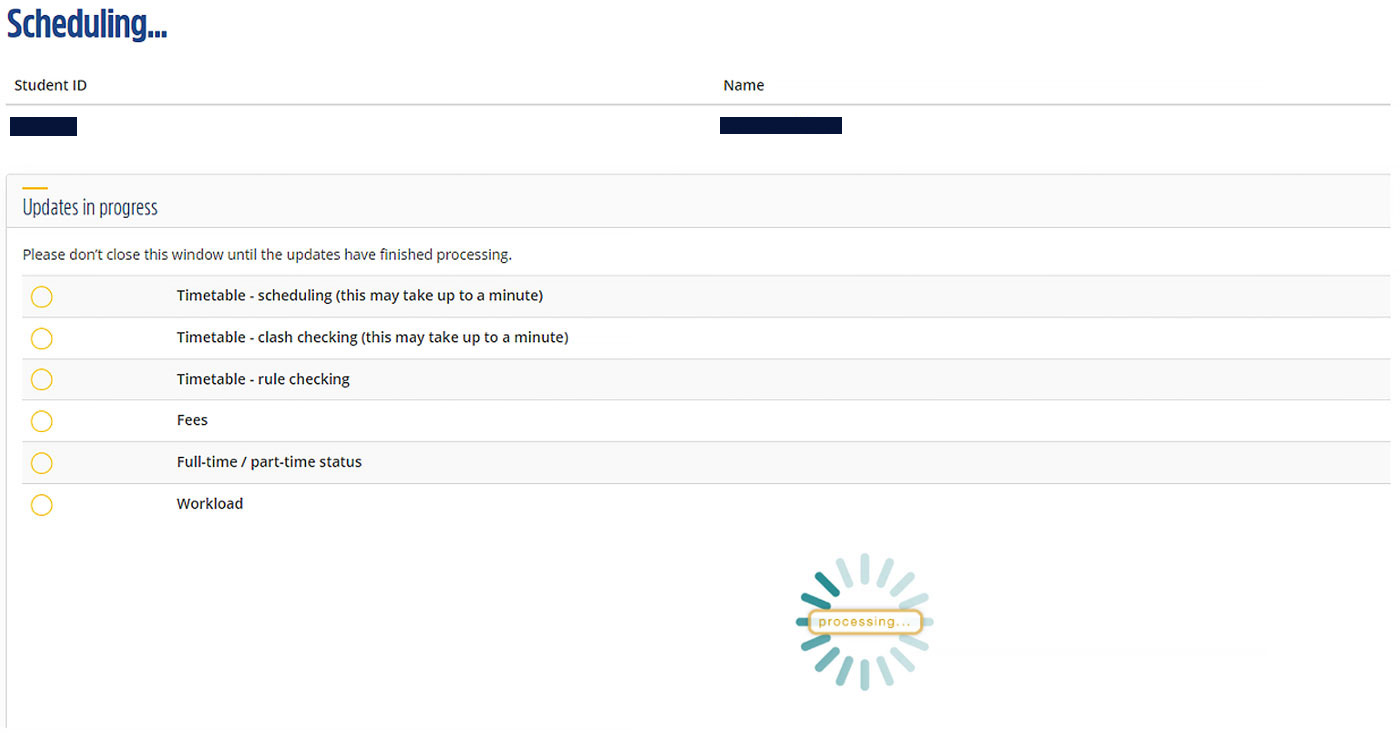
Make sure you continue through the screens until you have submitted the change of programme.
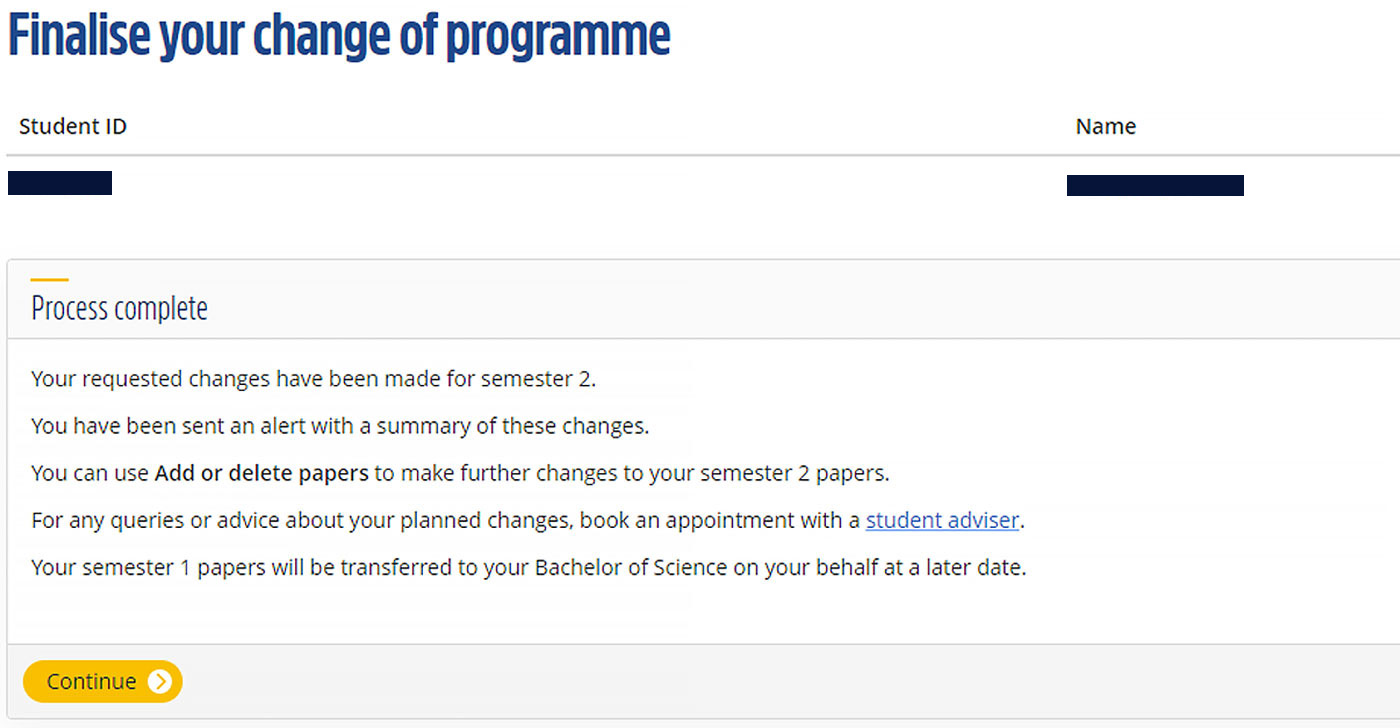
You will be returned to the Change of Course screen.
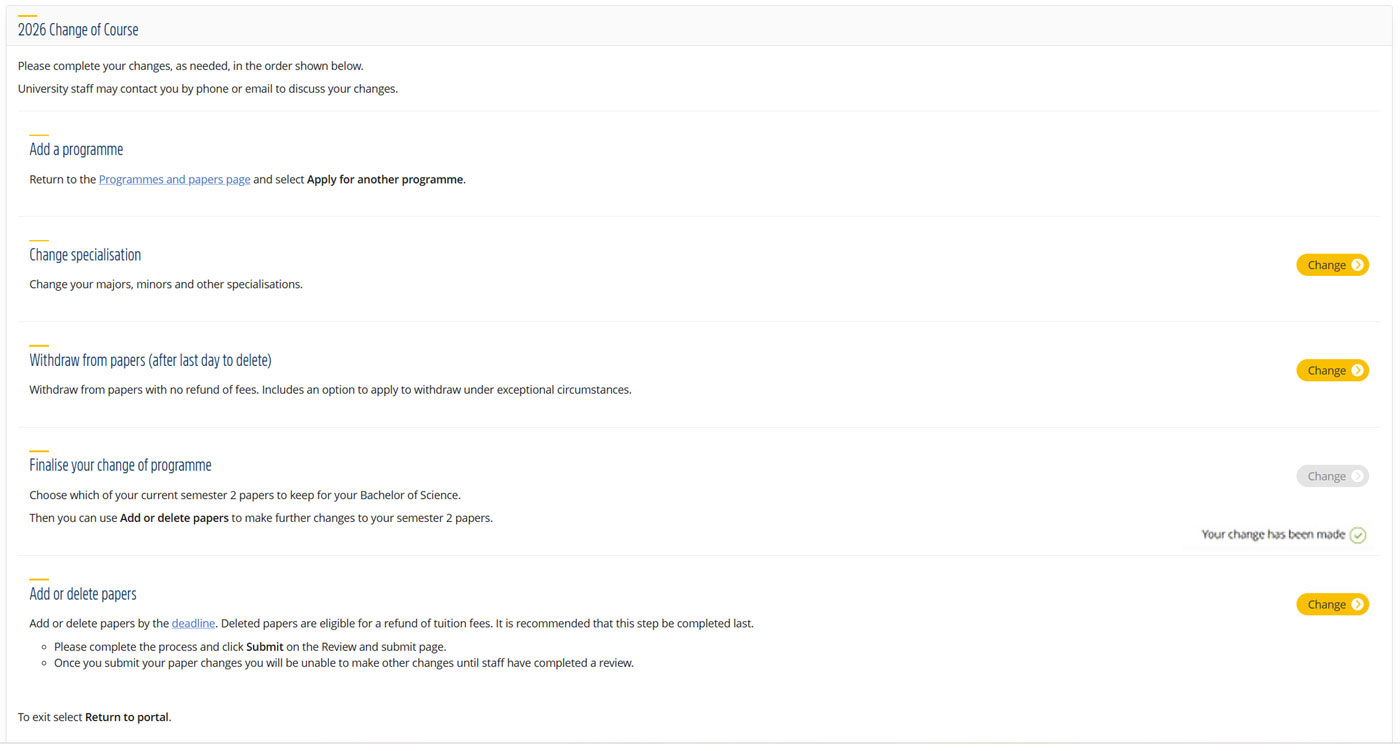
If you are finished, you can select ‘Return to portal’. Your request to transfer from HSFY to your new programme has progressed to the review stage and requires University approval. The request will be completed once this review has been confirmed, and you will be informed of the outcome.
If you still need to add or delete papers, select the yellow ‘Change’ button next to this option (and move on to Step 5).
Step 5a
You can now enter the ‘Change of Course – add/delete papers’ screen to make further changes to your semester 2 papers.
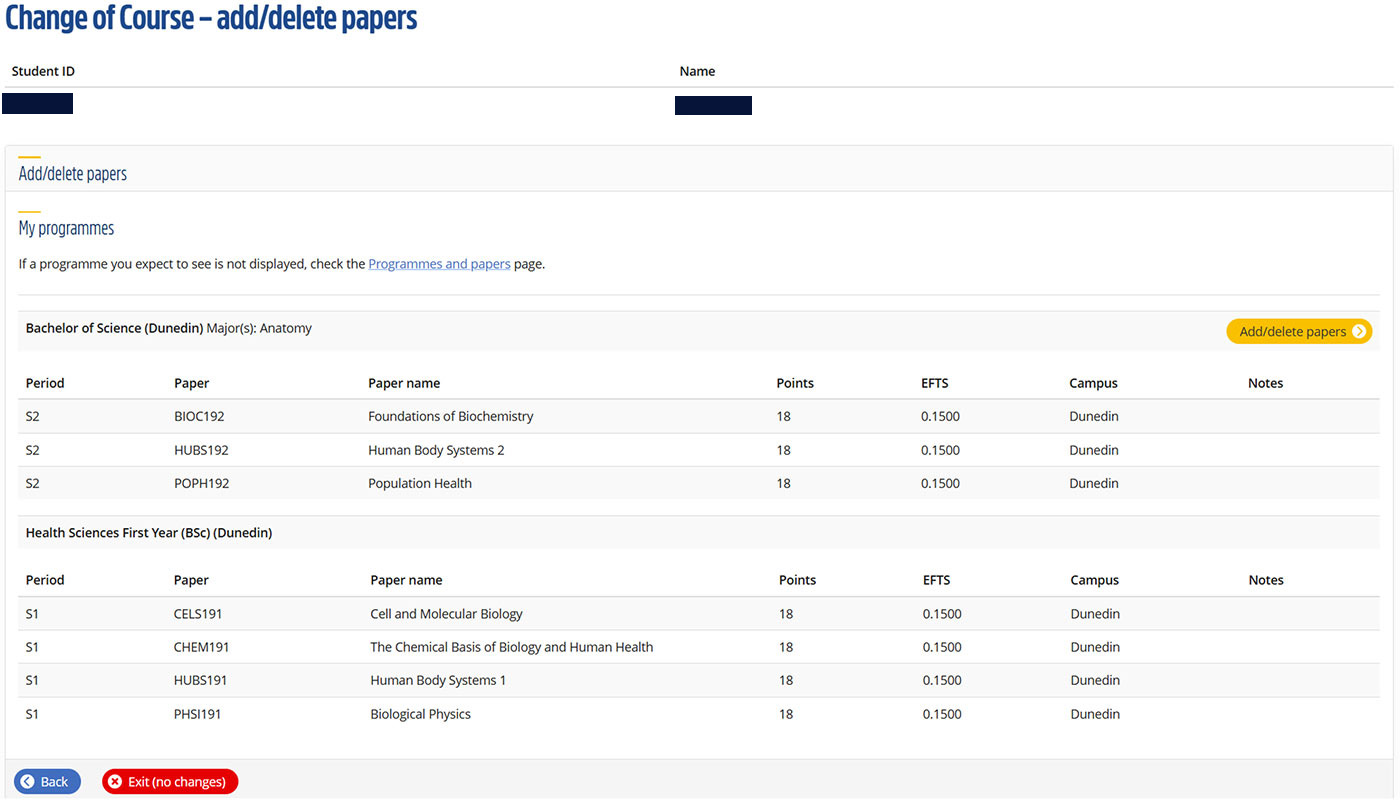
Select the yellow ‘Add/delete papers’ button.
Step 5b
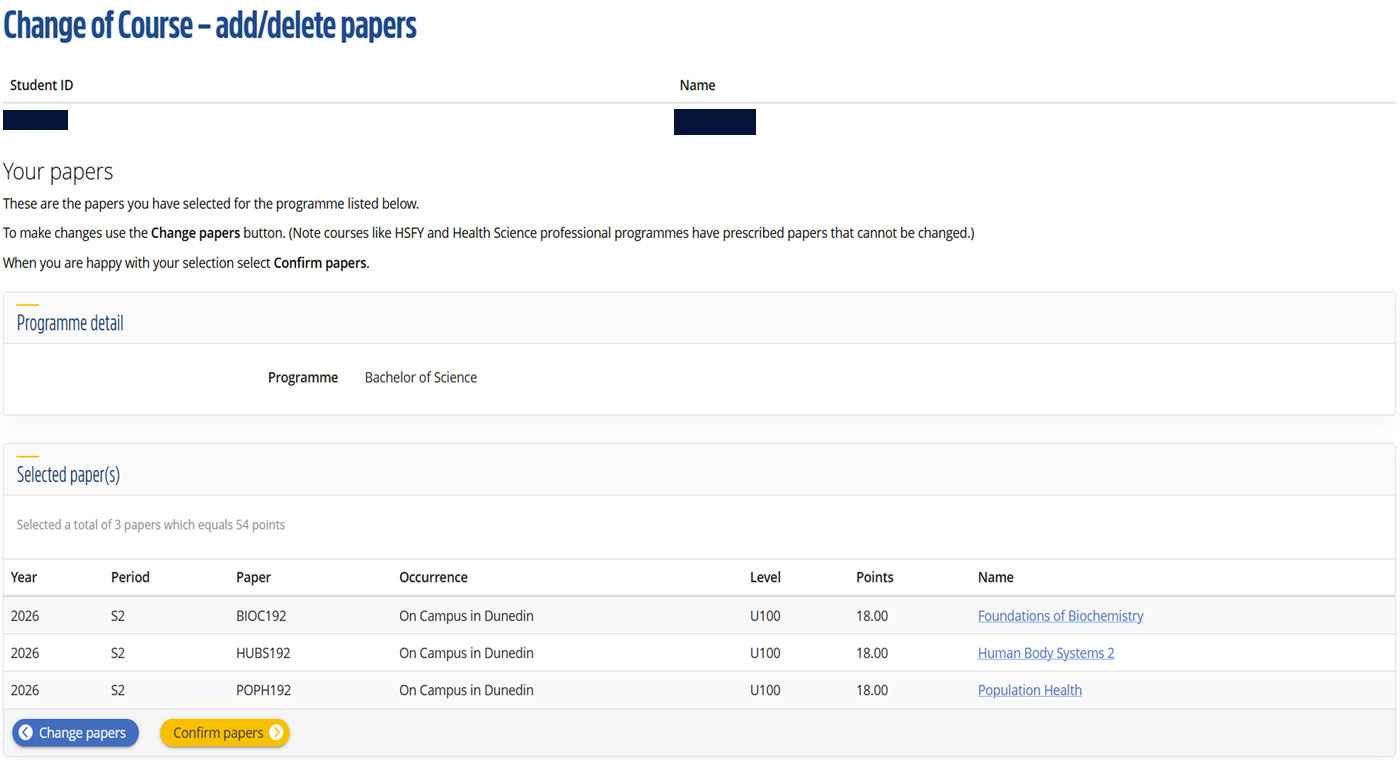 Select the blue ‘Change papers’ button.
Step 5c
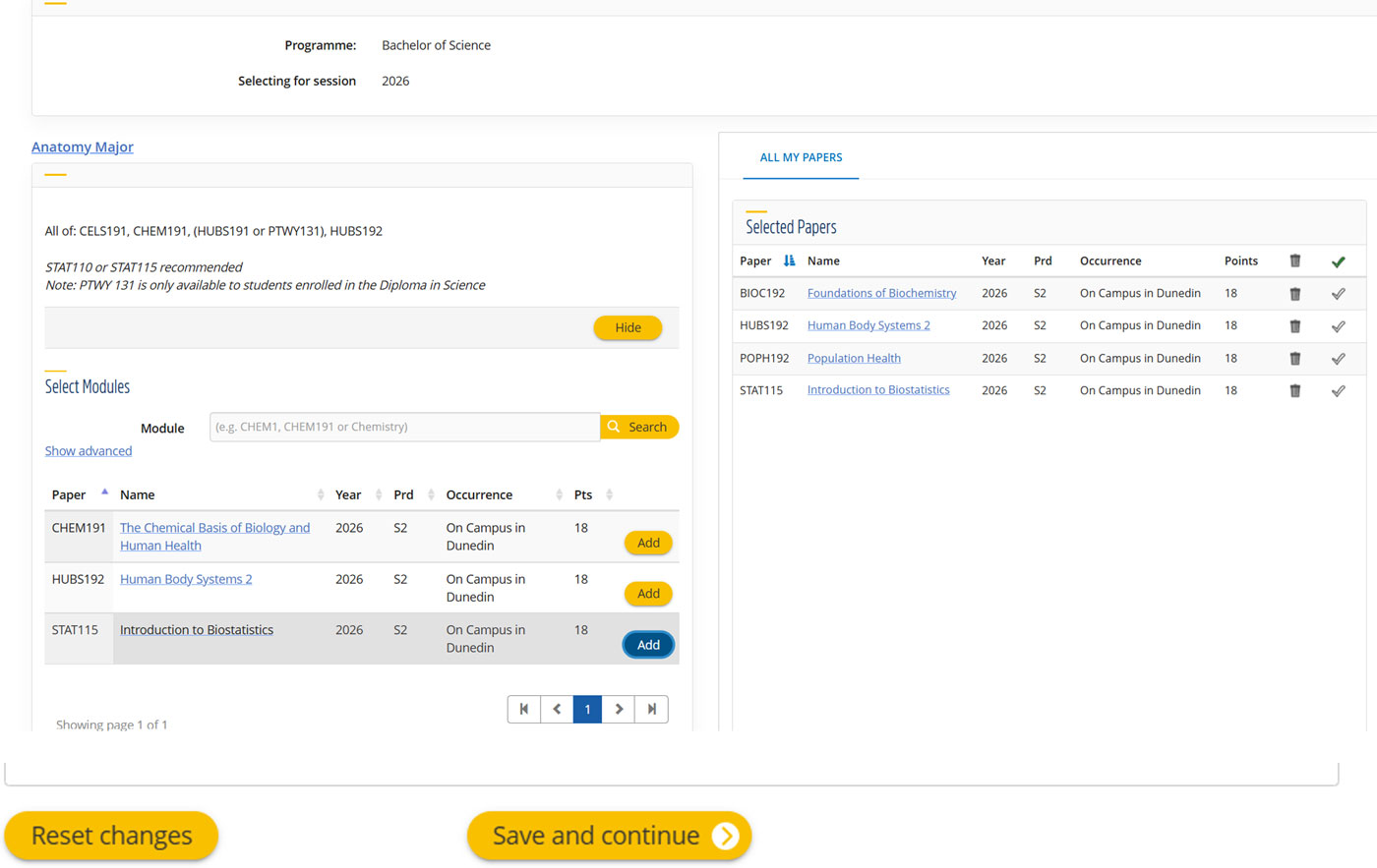
Add the papers you wish to from the boxes on the left-hand side and remove any that you do not wish to continue with (those are located on the right). These can be deleted by clicking the rubbish bin icon next to them.
To carry on with your Change of Course please click ‘Save and Continue’.
Step 5d
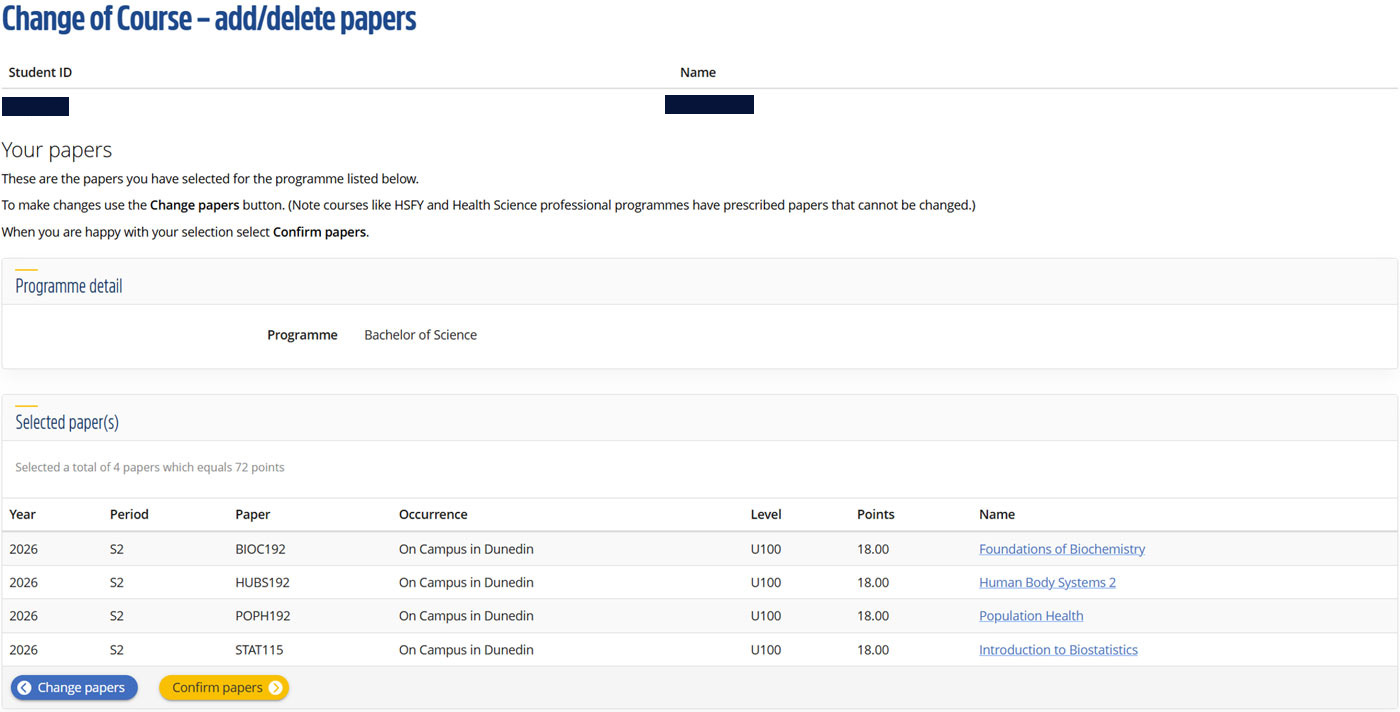
This takes you to the screen you were at previously, but now shows the changes you made. Now select the yellow ‘Confirm papers’ button.
To avoid creating system errors, wait for the scheduling process to finish.
Step 5e
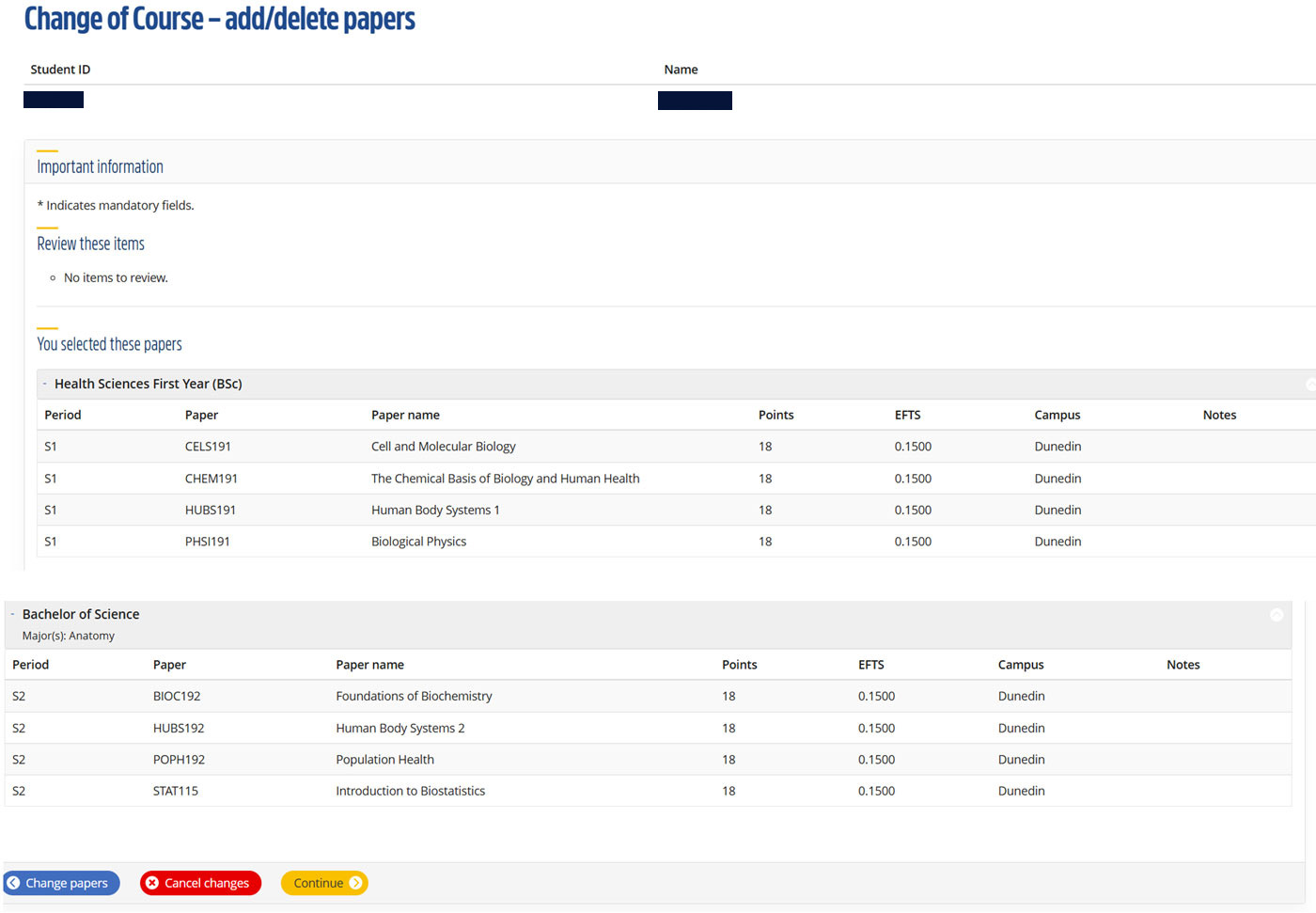
Once you are happy with the paper selection, please select the yellow ‘Continue’ button.
Step 5f
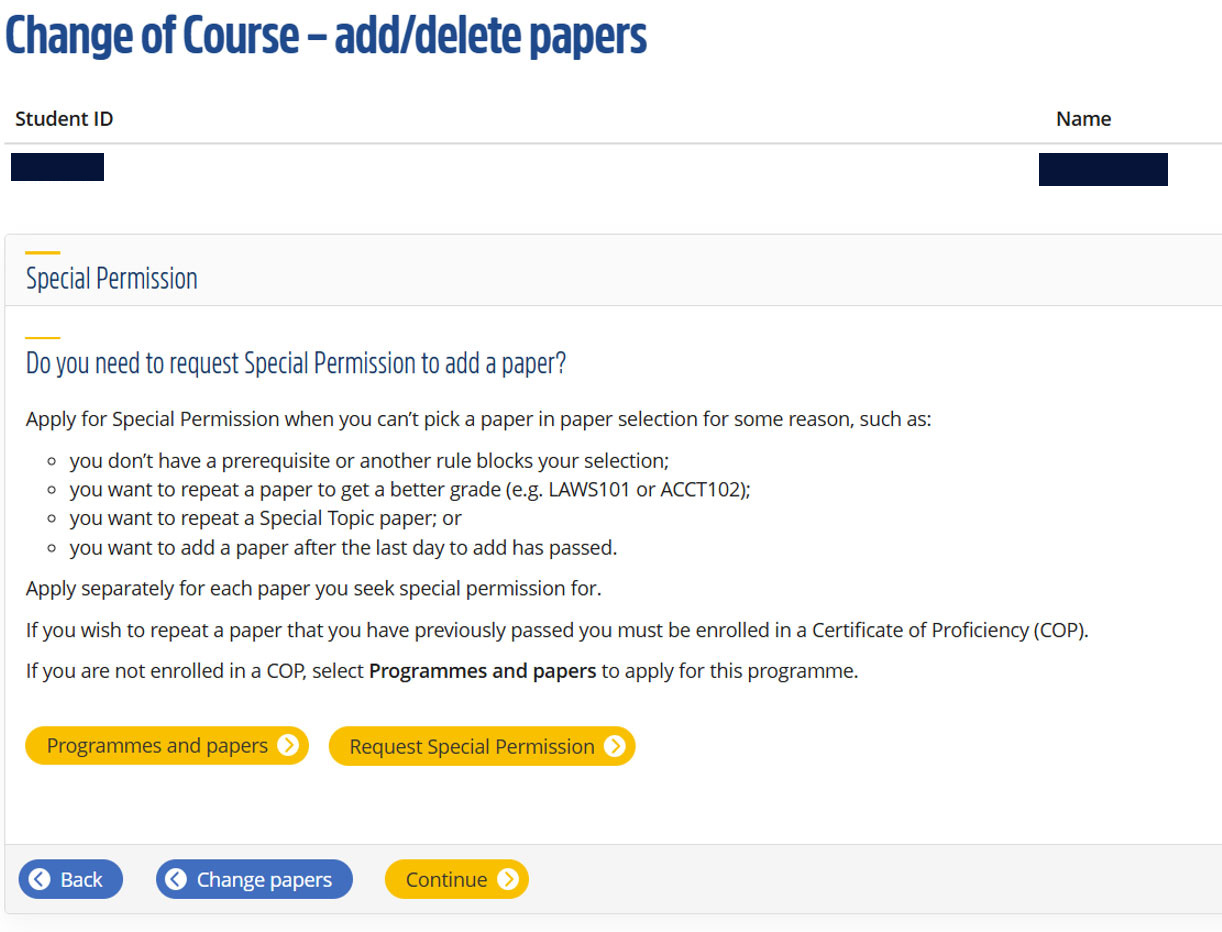 If you don’t want to add additional papers through special permission, please select the yellow ‘Continue’ button.
Step 5g
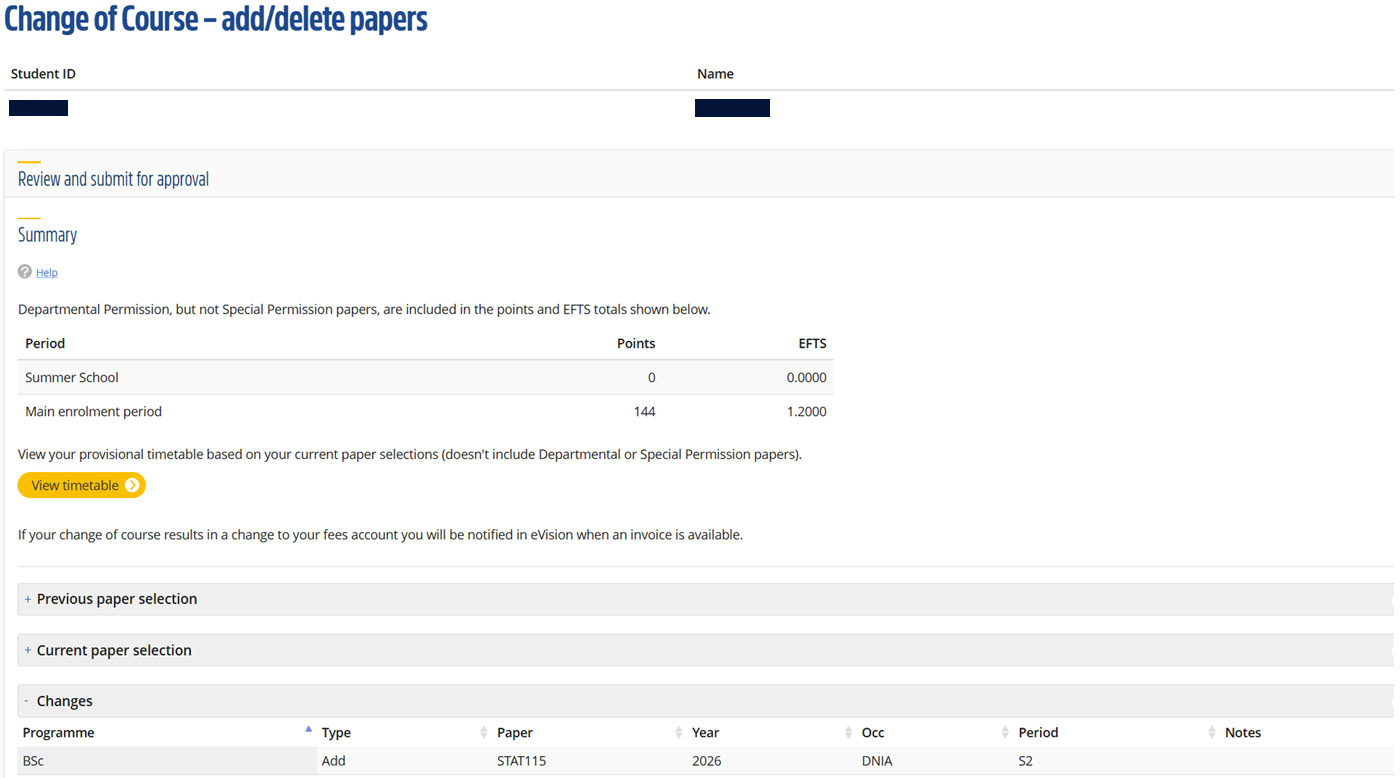
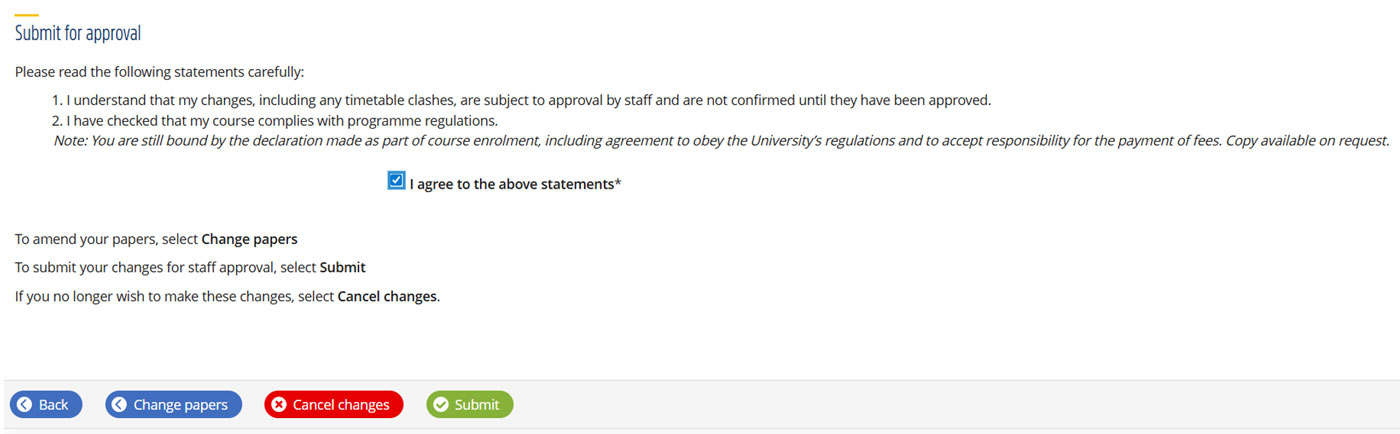
To continue, you should read the statements carefully and agree by adding a tick to the check box. Then click the green ‘Submit’ button.
If you do not, your changes will not be saved and eVision will revert them to your original selection within 48 hours.
Step 5h
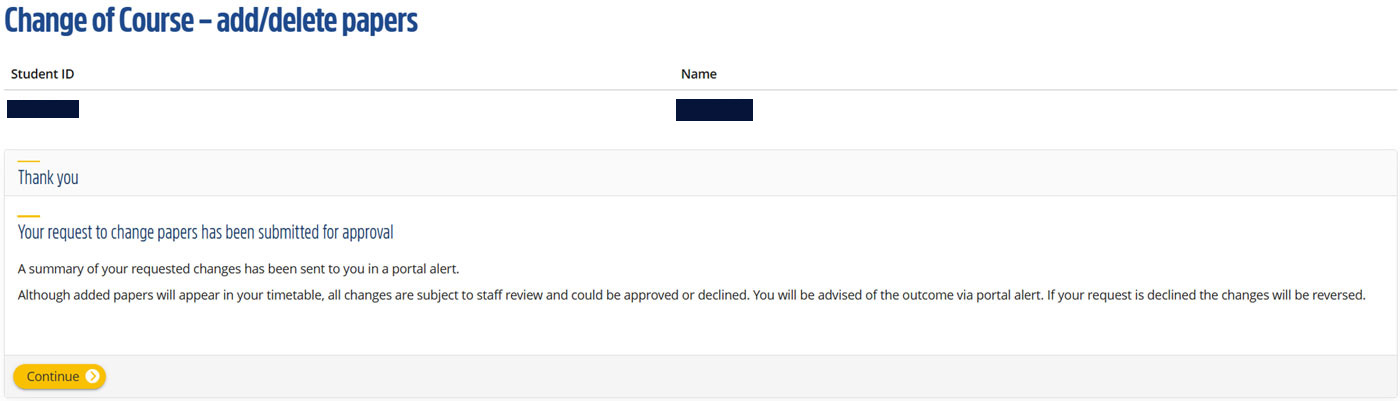 The submission ‘success’ screen informs you what happens next with your request. Select ‘Continue’ to return to your eVision profile.
Your request to transfer from HSFY to your new programme has progressed to the review stage and requires University approval. The request will be completed once this review has been confirmed, and you will be informed of the outcome.
After the last day to add papers
- You cannot use eVision to change papers after the last day to add papers for semester 2.
Check the course enrolment due date - In eVision you will be presented with a free-text enquiry box to tell us what changes you want to make. Please be specific, for example:
"I wish to delete BIOC 192"
"I wish to move POPH 192 to my Bachelor of Science"
"I wish to add MAOR 102 and CHEM 111 to my Bachelor of Science." - Enrolment after this date will require late paper addition and you will need approval from department to enrol.
- This change will be made on your behalf once you have received late paper addition to enrol in your semester two papers.
We recommend students seeking to change papers after the last day to add papers for semester 2 get advice from Student Development.
Tips for a smooth change from HSFY
- Check the timetable for your intended papers in case of any clashes.
- Be aware of fees and StudyLink implications.
- Ensure your new degree meets your degree requirements. Chat with Student Development for advice.
- Contact the enrolment team for enrolment-related issues:
Email enrolment@otago.ac.nz